

Introduction: Why Voice Cloning Matters for Video Creators
Voice adds authenticity. Whether you’re a content creator, marketer, or educator, using your real voice in AI videos boosts trust and personal connection. With Synthesia and a voice cloning tool, you can generate professional videos featuring your own AI-generated voice — no studio required.
In this guide, you’ll learn exactly how to clone your voice and integrate it into Synthesia for high-quality, personalized video narration.
🧩 Step 1: Record High-Quality Voice Samples
To start, you need clear audio samples of your voice. Use your phone or a microphone, but follow these tips:
- Record in a quiet room with minimal background noise
- Speak naturally for at least 1–3 minutes
- Use varied intonation and emotion
🎤 Tools to Record:
- Audacity (Free desktop tool)
- Voice Memos (iOS)
- Dolby On (Android/iOS)

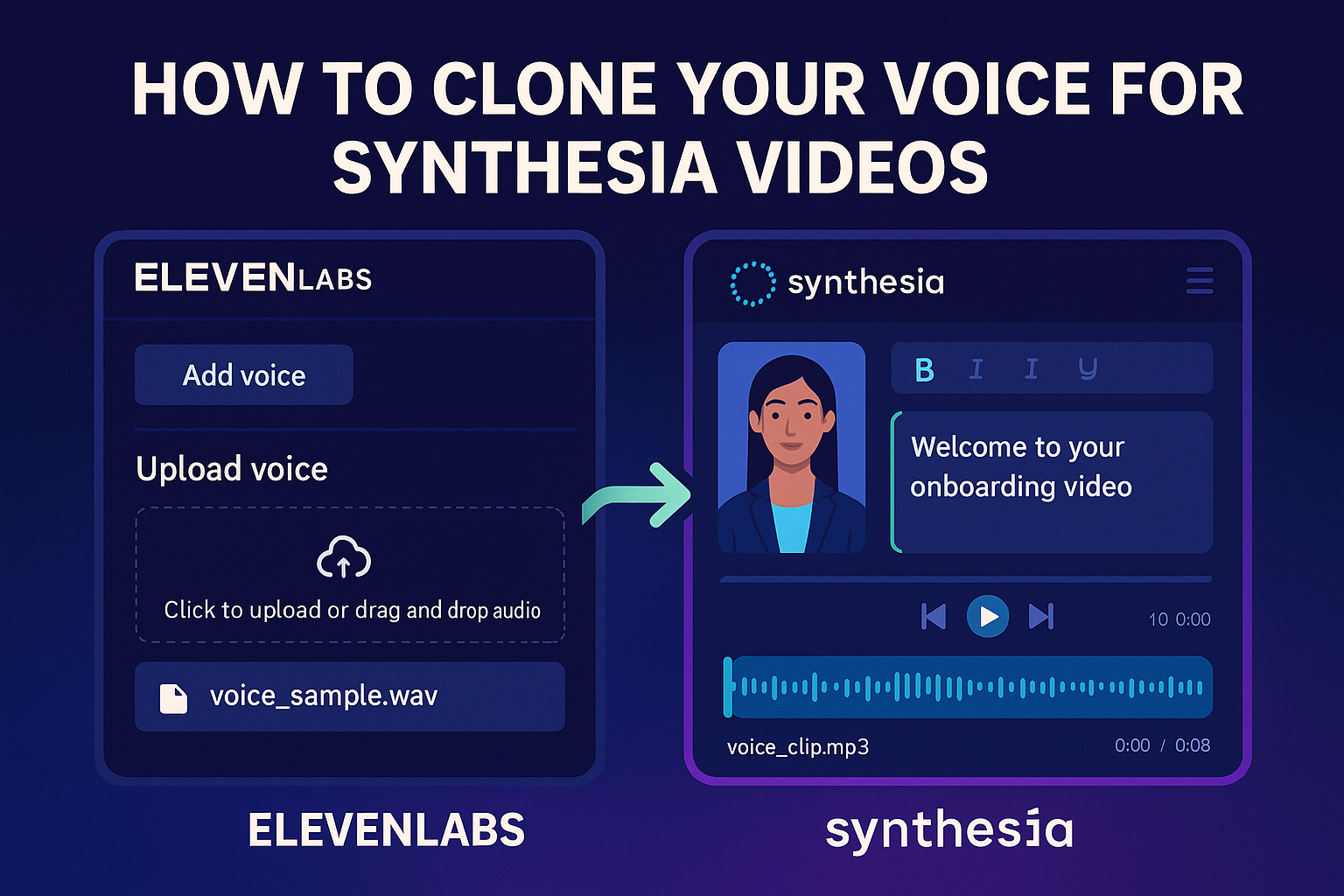
“A visual comparison between ElevenLabs’ voice upload interface and Synthesia’s audio import panel.”
🛠️ Step 2: Use a Voice Cloning Platform
After recording, upload your samples to a voice cloning tool. Recommended platforms include:
✅ ElevenLabs
- Realistic voice cloning with only 1–2 minutes of audio
- Fast turnaround
- Supports multiple languages and emotional tones

“Step-by-step illustration showing how to input your script and preview audio in your cloned voice.”
🎬 Step 3: Generate AI Voice Clips for Synthesia
Once the clone is ready, type or paste the script you want your cloned voice to say.
Most platforms give you options to adjust:
- Pitch & speed
- Emotion (calm, excited, sad, etc.)
- Accent (if supported)
🗣️ Example: “Welcome to your onboarding video” → synthesized in your cloned voice

“Timeline view in Synthesia showing avatar syncing with custom voiceover.”
🎞️ Step 4: Upload Audio to Synthesia Studio
In Synthesia:
- Start a new video project
- Choose your avatar
- In the “Audio” tab, upload your MP3 voice file
- Sync the voice with your avatar’s lip movements manually
✅ Tips for Natural Results
- Write conversational scripts
- Break long paragraphs into shorter lines
- Add natural pauses with punctuation
- Listen before exporting the final video
Final Thoughts
Cloning your voice for Synthesia videos unlocks a powerful combination: personalization + automation. In just a few minutes, you can deliver training, onboarding, or branded content in your real voice — at scale.
🎤 Let your digital twin speak — even while you sleep.
💬 What Do You Think?
Would you use your voice in AI videos? Have you tried ElevenLabs or Synthesia with audio upload?
Related Articles:
- [How to Build AI Avatars for Video Content]
- [Top Tools for AI Voiceovers in 2025]
- [Synthesia Review 2025: Is AI Video Creation]
- [Best AI Video Editors You Should Know]




Leave a comment